There are several ways to recover lost access on SQL ServerUsing PSTools
Using PSTools:
- Download the PSExec tool from https://docs.microsoft.com/en-in/sysinternals/downloads/psexec
- Run the SQL server instance in single user mode, as show below open in configuration manager add -m and restart the SQL server services.
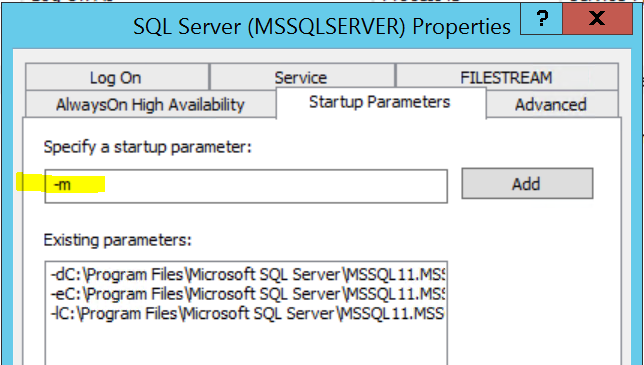
3. Now run the PSExec from command prompt.

4. When Management Studio launches, it will prompt you to connect to a server. You will notice that the authentication mode is Windows Authentication, and the username is hard-coded as NT AUTHORITY\SYSTEM:
5. in new query window run the below query to grant sysadmin access to your login. replace your login\groupname in theT-SQL
EXEC sp_addsrvrolemember 'DomainName\DBAGroupName', 'sysadmin';
GO
Using SQL Server VSS Writer service:
https://www.mssqltips.com/sqlservertip/4672/more-on-recovering-access-to-a-sql-server-instance/
- copy the SQLCMD file from the path C:\Program Files\Microsoft SQL Server\90\Shared and paste in C:\Program Files\Microsoft SQL Server\Client SDK\ODBC\140\Tools\Binn\
- rename the sqlwriter.exe as sqlwriter_old at C:\Program Files\Microsoft SQL Server\Client SDK\ODBC\140\Tools\Binn\
- rename the SQLCMD file as sqlwriter.exe at C:\Program Files\Microsoft SQL Server\Client SDK\ODBC\140\Tools\Binn\
- change the registry setting by adding below extension for the sqlwriter key from HKEY_LOCAL_MACHINE\SYSTEM\CurrentControlSet\Services\SQLWriter ( -s . -i D:\adddba.sql)
- restart the sqlwriter service.
some times adding login will not work as shown in the link, in that case use below method to grant access to your group
create login [domain\yogi] from windows;
alter server role sysadmin add member [domain\yogi];


 selectstarfromyogi